Hetzner has two offerings: Hetzner Robot (bare metal) and Hetzner Cloud (virtual machines and virtualized infrastructure). Syself Autopilot supports both, so you can run Kubernetes nodes on either platform. If you want to work purely with Hetzner Cloud, you can skip the bare metal preparation.
## Step 1: Create Hetzner Project
We assume that you have an account at [Hetzner](https://www.hetzner.com/).
Create a new project in the [Hetzner Cloud Console](https://console.hetzner.cloud/projects). Each project provides isolated resources including its own set of servers, networks, subnets, and IP addresses.
## Step 2: Create API Token
Create an API token inside your Hetzner project with read and write permissions. Store it somewhere safe, we'll be using it in later steps. The token grants access to manage cloud resources including servers, networks, and firewall rules in your project.
## Step 3: Upload SSH key to Hetzner Cloud
Create an SSH key
For example:
```console
$ ssh-keygen -t ed25519 -C 'autopilot'
```
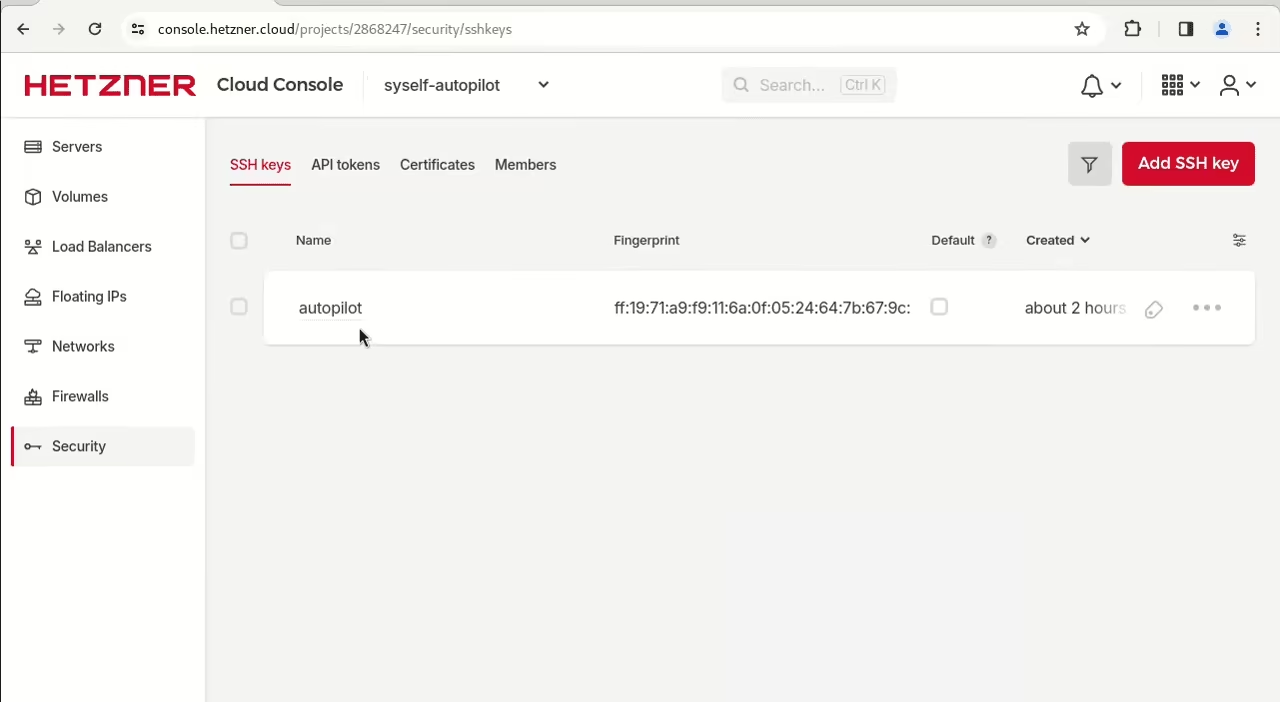
Upload the public key to the Hetzner project
## Optional: Setting up a user for Hetzner Robot (bare metal)
The Robot User is needed for managing bare metal machines. Hetzner Robot provides dedicated root servers with full hardware access, including RAID configuration and direct management through the Robot API. You can create a Robot user like this:
1. Go to [robot.hetzner.com](https://robot.hetzner.com/)
1. Go to "Settings" (behind "👤")
1. Go to "Webservice and app settings"
1. Configure "Webservice/app user"
## Step 4: Store all values in environment variables
Store all values that you gathered during the steps above in environment variables.
```console
$ export KUBECONFIG=/optional/path/to/your/management/cluster/kubeconfig
$ export HCLOUD_TOKEN=
$ export SSH_KEY_NAME=
$ export HETZNER_SSH_PUB_PATH=/path/to/file/.pub
$ export HETZNER_SSH_PRIV_PATH=/path/to/file/
$ export HETZNER_ROBOT_USER=
$ export HETZNER_ROBOT_PASSWORD=
```
```console
$ export KUBECONFIG=/optional/path/to/your/management/cluster/kubeconfig
$ export HCLOUD_TOKEN=
$ export SSH_KEY_NAME=
```
You can use "echo", for example `echo $SSH_KEY_NAME`, to check that the values are set correctly. If you use infrastructure as code tools like Terraform alongside Syself, you may also want to store these values in your configuration files for other purposes.
## Step 5: Create Secrets in Management Cluster
To create Kubernetes clusters in your Hetzner account, you need to create secrets in the management cluster using the kubectl client. The management cluster runs the control plane that orchestrates your workload clusters.
### Secret for accessing Hetzner API
Create the secret "hetzner" in the following way. Kubernetes stores secrets with base64 encoding by default; for encryption at rest, see the [etcd encryption guide](/docs/hetzner/apalla/security/encrypt-etcd).
```console
$ kubectl create secret generic hetzner \
--from-literal=hcloud=$HCLOUD_TOKEN \
--from-literal=robot-user=$HETZNER_ROBOT_USER \
--from-literal=robot-password=$HETZNER_ROBOT_PASSWORD \
--from-literal=hcloud-ssh-key-name=$SSH_KEY_NAME
secret/hetzner created
$ kubectl get secrets
NAME TYPE DATA AGE
hetzner Opaque 4 5s
```
```console
$ kubectl create secret generic hetzner \
--from-literal=hcloud=$HCLOUD_TOKEN \
--from-literal=hcloud-ssh-key-name=$SSH_KEY_NAME
secret/hetzner created
$ kubectl get secrets
NAME TYPE DATA AGE
hetzner Opaque 2 5s
```
### Optional: Secret for bare metal servers
Bare metal servers get provisioned with SSH after the operating system is installed and the server finishes booting. Therefore, you need to create another secret:
```console
$ export SSH_KEY_NAME=autopilot
$ export HETZNER_SSH_PUB_PATH=~/.ssh/autopilot.pub
$ export HETZNER_SSH_PRIV_PATH=~/.ssh/autopilot
$ kubectl create secret generic robot-ssh \
--from-literal=sshkey-name=$SSH_KEY_NAME \
--from-file=ssh-privatekey=$HETZNER_SSH_PRIV_PATH \
--from-file=ssh-publickey=$HETZNER_SSH_PUB_PATH
secret/robot-ssh created
$ kubectl get secrets
NAME TYPE DATA AGE
hetzner Opaque 4 4m56s
robot-ssh Opaque 3 5s
```
Via `kubectl get secrets` you can check that the secrets got created as intended. With your account prepared, you are ready to proceed to [creating your first cluster](/docs/hetzner/apalla/getting-started/create-your-first-cluster).