## Introduction
Hetzner has two offerings: Hetzner Robot (bare metal) and Hetzner Cloud (virtualized). The Syself Autopilot supports both of them. Please make sure you configure the connection for both Hcloud and Robot.
## Step 1: Create Hetzner Project
We assume that you have an account at [Hetzner](https://www.hetzner.com/).
Please create a new project via [Hetzner Cloud Console](https://console.hetzner.cloud/projects).
## Step 2: Create API Token
Create an API token inside your Hetzner project with read and write permissions. Store it somewhere safe, we'll be using it in later steps.
## Step 3: Upload SSH key to Hetzner Cloud
1. Create a new SSH key, for example by using this command:
```console
$ ssh-keygen -t ed25519 -C 'autopilot'
```
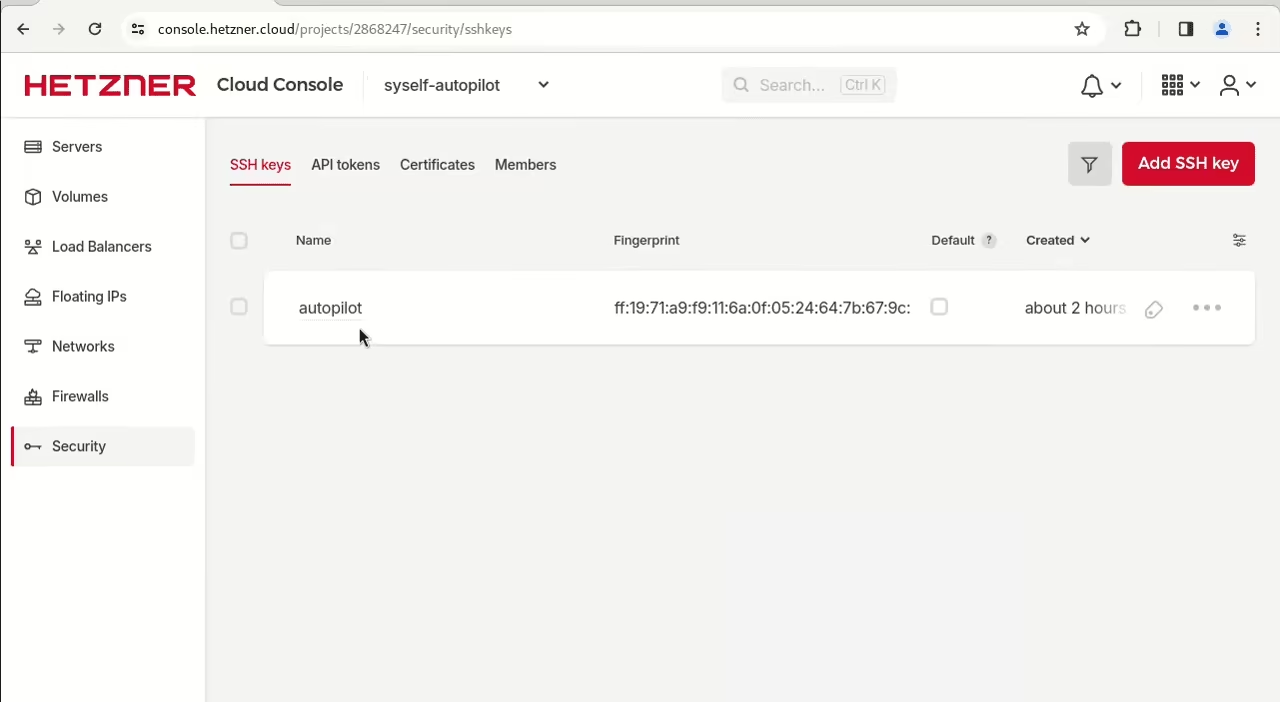
2. Upload the public key to the Hetzner project.
## Step 4: Setting up a user for Hetzner Robot (bare metal)
The Robot User is needed for managing bare metal machines. You can create one like this:
1. Go to [robot.hetzner.com](https://robot.hetzner.com/)
1. Go to "Settings" (behind "👤")
1. Go to "Webservice and app settings"
1. Configure "Webservice/app user"
## Step 5: Store all values in environment variables
Store all values that you gathered during the steps above in environment variables.
```console
$ export KUBECONFIG=/optional/path/to/your/management/cluster/kubeconfig
$ export HCLOUD_TOKEN=
$ export SSH_KEY_NAME=
$ export HETZNER_SSH_PUB_PATH=/path/to/file/.pub
$ export HETZNER_SSH_PRIV_PATH=/path/to/file/
$ export HETZNER_ROBOT_USER=
$ export HETZNER_ROBOT_PASSWORD=
```
You can use "echo", for example `echo $SSH_KEY_NAME`, to ensure that the values are set correctly.
## Step 6: Create Secrets in Management Cluster
To create Kubernetes clusters in your Hetzner account, you need to create secrets in the management cluster.
### Secret for accessing Hetzner API
Create the secret "hetzner" in the following way:
```console
$ kubectl create secret generic hetzner \
--from-literal=hcloud=$HCLOUD_TOKEN \
--from-literal=robot-user=$HETZNER_ROBOT_USER \
--from-literal=robot-password=$HETZNER_ROBOT_PASSWORD \
--from-literal=hcloud-ssh-key-name=$SSH_KEY_NAME
secret/hetzner created
$ kubectl get secrets
NAME TYPE DATA AGE
hetzner Opaque 4 5s
```
### Secret for bare metal servers
Bare metal servers get provisioned with SSH. Therefore, you need to create another secret:
```console
$ export SSH_KEY_NAME=autopilot
$ export HETZNER_SSH_PUB_PATH=~/.ssh/autopilot.pub
$ export HETZNER_SSH_PRIV_PATH=~/.ssh/autopilot
$ kubectl create secret generic robot-ssh \
--from-literal=sshkey-name=$SSH_KEY_NAME \
--from-file=ssh-privatekey=$HETZNER_SSH_PRIV_PATH \
--from-file=ssh-publickey=$HETZNER_SSH_PUB_PATH
secret/robot-ssh created
$ kubectl get secrets
NAME TYPE DATA AGE
hetzner Opaque 4 4m56s
robot-ssh Opaque 3 5s
```
You should use the same SSH key as you used for setting up Hetzner Cloud.
Via `kubectl get secrets` you can check that the secrets got created as intended.